Git Branching
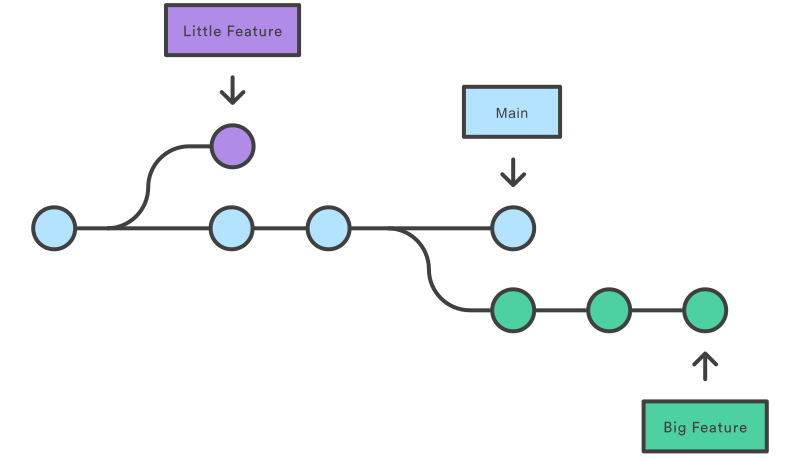
1. What is a branch? A branch in Git is like a separate workspace. It lets developers work on different versions of a codebase without affecting each other's work. The main branch (often called "master" or "main") is the stable version, and other branches are created from it.
2. Creating a Branch: To create a new branch, use git branch followed by the branch name:
git branch feature-branch
3. Switching to a Branch: Move to the new branch using git checkout or git switch:
git switch feature-branch
Or We can use the command below, this will create a new branch and switch to it as well.
git checkout -b branch_name
4. Committing Changes: Make changes and commit them on the branch:
git add .
git commit -m "Your commit message"
5. Merging Branches: To combine changes from one branch into another (usually the main branch), use git merge:
git checkout main
git merge feature-branch
6. Conflict Resolution: Conflicts may occur during a merge when the same code lines are changed differently. You'll need to resolve conflicts manually.
7. Branch Visualization: Git offers tools like git log or graphical interfaces to help you see the branching structure and commit history.
8. Branch Lifecycle: After merging and testing, branches can be safely deleted to keep the repository organized.
9. Remote Branches: Remote branches are on a remote repository (e.g., GitHub). You can track and work with them using commands like git fetch and git pull.
Git branching enables efficient collaboration, independent feature development, and a stable codebase, making it a crucial part of modern software development projects.
Git Revert and Reset
Both git revert and git reset is a powerful command in Git used to manage and undo changes in a repository. However, they serve different purposes and should be used with caution.
Git Revert:
Purpose:
git revertis used to create a new commit that undoes the changes made in a previous commit. It allows you to safely undo changes without rewriting history.Commit Reversal: When you use
git revert <commit>it will create a new commit that contains the opposite (reversed) changes of the specified commit. This keeps the commit history intact but adds a new commit to the branch.Safe Undo: Since it creates a new commit, it's considered a safe way to undo changes, especially if the commit you want to revert has already been shared with others.
Command: The basic syntax for
git revertis:git revert <commit>
Git Reset:
Purpose:
git resetis used to reset the current branch's HEAD to a specific commit. It can be used to undo changes in various ways, but it's more powerful and can rewrite history, so it should be used with caution.Commit Removal: When you use
git resetwith the--mixed,--soft, or--hardoption, it moves the branch pointer to the specified commit and can potentially remove commits.Caution: The
--hardoption ingit resetis particularly dangerous because it discards all changes in the working directory and staging area, effectively removing them from the history.Command: The basic syntax for
git resetis:git reset [--mixed | --soft | --hard] <commit>
Key Differences:
git revertundoes changes by creating a new commit with the opposite changes, whilegit resetmoves the branch pointer and can remove commits from the history.git revertis safe and recommended for undoing public or shared commits, whilegit resetcan lead to data loss and should be used carefully.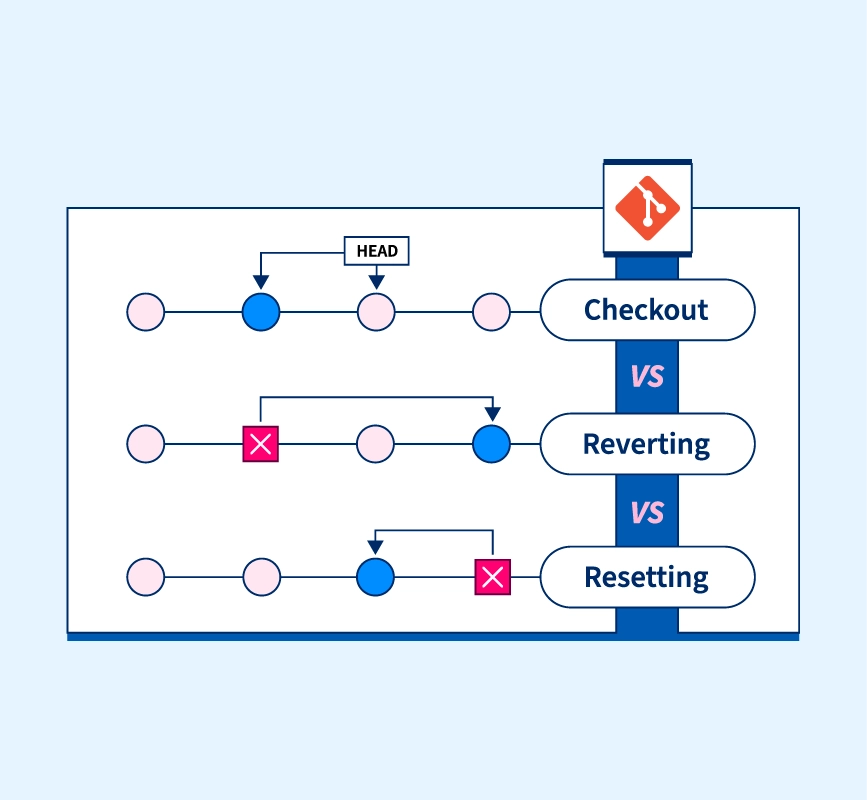
Summary: Use
git revertwhen you want to safely undo changes and keep the commit history intact. Usegit resetwhen you need to move the branch pointer or remove commits, but exercise caution, especially with the--hardoption, as it can result in permanent data loss.
Git Rebase and Merge
Git rebase and git merge are two ways of integrating changes from one branch into another branch in Git. Each method has its distinct characteristics and use cases. Let's delve into each of them:
Git Rebase:
Purpose: Git rebase is a method of integrating changes by moving or applying each commit from the source branch onto the tip of the target branch. It effectively rewrites the commit history of the source branch on top of the target branch.
Commit History: Rebase creates a more linear and cleaner commit history because it eliminates the extra merge commits that result from using git merge.
Commit Rewriting: During the rebase process, Git creates new commits with different commit IDs for each original commit in the source branch. It preserves the changes but changes the commit history.
Use Cases: Rebase is often used when working on short-lived feature branches that need to be kept up-to-date with changes from the main branch (e.g., 'master'). It helps maintain a cleaner and easier-to-follow history when the feature is eventually merged.
Command: The basic syntax for rebasing is:
 git checkout feature-branch
 git rebase main
Git Merge:
Purpose: Git merge is a method of integrating changes by creating a new commit that combines the changes from one branch into another. It keeps the commit history of both branches and adds a merge commit.
Commit History: Merge commits can lead to a more complex commit history, as each merge creates a new commit that represents the integration point of the branches.
Use Cases: Merge is suitable for integrating larger, long-lived feature branches or when you want to combine the work of multiple developers in a shared branch.
Command: The basic syntax for merging is:
 git checkout main
 git merge feature-branch
Key Differences:
Rebase results in a cleaner, more linear commit history, while merge creates merge commits and can lead to a more complex history.
Merge preserves the original commit history of both branches, while rebase rewrites the commit history of the source branch.

When to Use Each:
Use
git rebasewhen you want a clean and linear commit history, especially for short-lived feature branches.Use
git mergewhen you want to preserve the original commit history of both branches or when integrating more substantial, long-lived feature branches.
Both git rebase and git merge are valuable tools in Git, and choosing between them depends on the specific requirements of the development workflow and the desired commit history.
Task-1: Playing with Git branch, Git reset
Certainly! Let's go through the provided commands step by step and describe what each command does:
Initialize Git Repository:
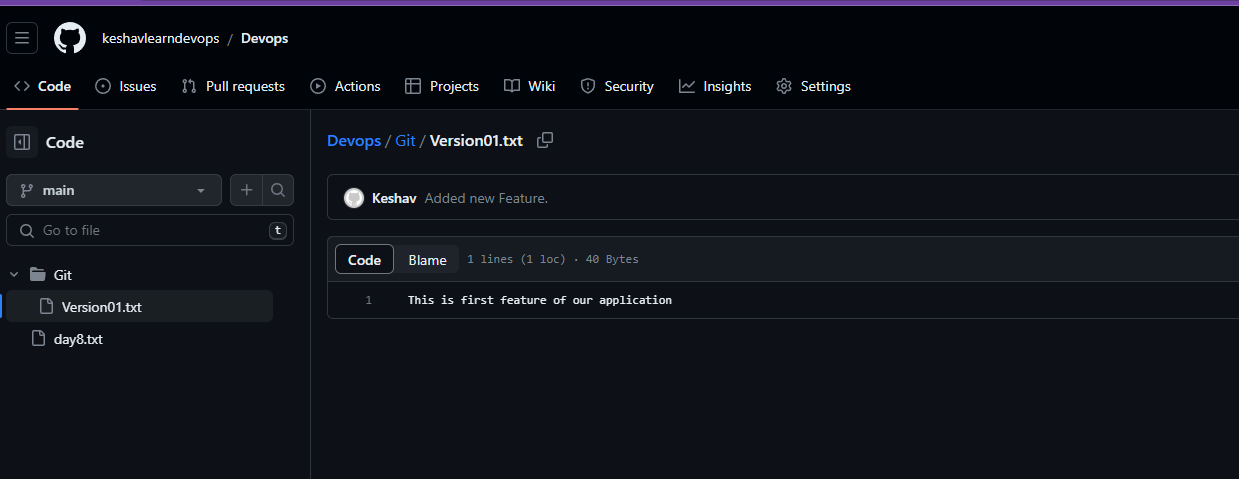
We are currently in the Main Branch. We will First do add , commit and push from main branch and then switch to dev branch
> git initThis command initializes a new Git repository in the directory "D:\Git_Test."
Add and Commit Initial Changes:
 > git add .
 > git commit -m "Added new Feature."
The first command (
git add .) stages all the untracked files, including the "Git/" directory, to be included in the next commit. The second command (git commit -m "Added new Feature.") creates a new commit on the "main" branch with the message "Added new Feature."Push the Commit to Remote Repository:
> git push origin mainThis command pushes the commit from the "main" branch to the remote repository named "origin."
After pushing, just check your GitHub Repository.
Create and Switch to the "dev" Branch:
> git checkout -b devThis command creates a new branch called "dev" branching off from the current branch (which is "main" in this case) and switches to the newly created "dev" branch.
Adding, Committing, and Pushing Commits to the "dev" Branch:
 > git add .
 > git commit -m "Added feature2 in development branch"
 > git add .
 > git commit -m "Added feature3 in development branch"
 > git add .
 >  git commit -m "Added feature4 in development branch"
The user adds and commits three new changes on the "dev" branch, each with a different commit message. These changes are committed locally.
The commits for feature4 and feature3 created errors so we have to roll back to the stable commit which is feature2 with commit ID 'f5f0f94'
Reviewing Commit History:
 > git log
 > git log --oneline
 ab77c0c (HEAD -> dev) Added feature4 in development branch
 cca09fb Added feature3 in development branch
 f5f0f94 Added feature2 in development branch
 c7d405d (origin/main, main) Added new Feature.
 5d7cd91 Added new Feature
 e119dc9 first commit modified
 c8b2880 first commit
git log: Shows the detailed commit history with commit messages, authors, dates, and commit IDs.git log --oneline: Shows a more concise version of the commit history, displaying only the first few characters of the commit IDs and their messages.git show f5f0f94: Shows the details of a specific commit with the commit ID "f5f0f94," displaying the commit message and the changes made in that commit.
Resetting the "dev" Branch:
> git reset --hard f5f0f94The user attempts to reset the "dev" branch to the specified commit with the commit ID "f5f0f94." However, due to incorrect syntax, a parser error occurs. The correct reset command is then executed using
git reset --hard f5f0f94, which moves the branch pointer to the specified commit and effectively undoes the subsequent commits.Final Review:
 > git log --oneline
 f5f0f94 (HEAD -> dev) Added feature2 in development branch
 c7d405d (origin/main, main) Added new Feature.
 5d7cd91 Added new Feature
 e119dc9 first commit modified
 c8b2880 first commit
 > git show f5f0f94
 commit f5f0f943416c0a8d6e7cb73170b1c4f1c873ca5a (HEAD -> dev)
 Author: Keshav <keshav7907@gmail.com>
 Date:   Mon Jul 24 14:09:22 2023 +0530

     Added feature2 in development branch

 diff --git a/Git/Version01.txt b/Git/Version01.txt
 index a613b74..dfa044d 100644
 --- a/Git/Version01.txt
 +++ b/Git/Version01.txt
 @@ -1 +1,2 @@
 -This is first feature of our application
 \ No newline at end of file
 +This is first feature of our application
 +This is the bug fix in development branch
 \ No newline at end of file
After resetting, the user reviews the commit history and shows the details of the commit "f5f0f94" again to verify that the "dev" branch has been reset to that commit, and the subsequent commits are removed.
Remember, git reset --hard is a powerful and irreversible operation, as it discards commits. Be cautious while using it, and ensure you have a backup or are aware of the consequences before performing such operations.
Task-2: Playing with Branches, Git Merge and Git Rebase
Step 1: Create and Switch to a New Branch
Create a new branch, e.g., 'test', using the appropriate Git command.
Switch to the newly created branch to start making changes in that branch.
Step 2: Make Changes and Commit in the New Branch
Make the desired changes to your code or files in the 'test' branch.
Commit the changes to the 'test' branch to save them locally.
Step 3: Push Changes to Remote
Push the 'test' branch with its commit to the remote repository.
This will make the changes available on the remote server for others to see and collaborate on.
Step 4: Switch Back to the Original Branch
- Switch back to the original branch (e.g., 'dev') where you want to merge the changes from 'test' branch.
Step 5: Make New Changes in the Original Branch
Continue working in the original branch ('dev') and make any necessary changes or additions.
Add and commit the changes in the original branch.
Step 6: Push Changes in the Original Branch
- Push the changes made in the original branch ('dev') to the remote repository.
Step 7: Merge 'test' Branch into the Original Branch
Switch back to the original branch ('dev') where you want to merge the changes from 'test'.
Merge the 'test' branch into the 'dev' branch to incorporate the changes from 'test' into 'dev'.
Resolve any conflicts if they arise.
Step 8: Merge 'dev' Branch into the Main Branch
Switch to the main branch (e.g., 'main').
Merge the 'dev' branch into the main branch to bring the changes made in 'dev' into the 'main' branch.
Resolve any conflicts if necessary.
Step 9: Push Merged Changes to Remote Main Branch
Push the main branch with the merged changes to the remote repository.
The changes from both 'dev' and 'test' are now part of the main branch on the remote repository.
Step 10: Create a Pull Request
After pushing the merged changes to the remote main branch, you will typically receive a notification on your collaboration platform (e.g., GitHub) to create a pull request.
The pull request will propose merging the changes from 'dev' and 'test' branches into the 'main' branch.
You can then review the changes, discuss them with other team members, and, if everything looks good, merge the pull request into 'main'.
git status:On branch dev nothing to commit, working tree cleanExplanation: This command shows that you are currently on the
devbranch, and there are no changes to commit.git checkout -b test:Switched to a new branch 'test'Explanation: This command creates a new branch named
testand switches to it. The-bflag is used to create the branch in one step.git status:On branch test nothing to commit, working tree cleanExplanation: After creating and switching to the
testbranch, thegit statuscommand shows that there are no changes to commit in this branch.git status:On branch test Changes not staged for commit: (use "git add <file>..." to update what will be committed) (use "git restore <file>..." to discard changes in working directory) modified: Git/Version01.txt no changes added to commit (use "git add" and/or "git commit -a")Explanation: The
git statuscommand shows that there are changes in thetestbranch that have not been staged for commit. Specifically, the fileGit/Version01.txthas been modified.git add .: Explanation: This command stages all changes in the working directory for the next commit. It prepares the modified fileGit/Version01.txtfor commit.git commit -m "Testing the code":[test dc6010b] Testing the code 1 file changed, 2 insertions(+), 1 deletion(-)Explanation: This command creates a new commit in the
testbranch with the message "Testing the code." The changes previously staged withgit addare now committed.git push origin test:Enumerating objects: 11, done. Counting objects: 100% (11/11), done. Delta compression using up to 12 threads Compressing objects: 100% (6/6), done. Writing objects: 100% (8/8), 719 bytes | 239.00 KiB/s, done. Total 8 (delta 1), reused 0 (delta 0), pack-reused 0 remote: Resolving deltas: 100% (1/1), done. remote: remote: Create a pull request for 'test' on GitHub by visiting: remote: https://github.com/keshavlearndevops/Devops/pull/new/test remote: To https://github.com/keshavlearndevops/Devops.git * [new branch] test -> testExplanation: This command pushes the new branch
testwith its commit to the remote repository namedorigin. The branch is now available on the remote repository for others to see and collaborate on.git checkout dev:Switched to branch 'dev'Explanation: This command switches back to the
devbranch, moving you out of thetestbranch.git status:On branch dev nothing to commit, working tree cleanExplanation: The
git statuscommand shows that there are no changes to commit on thedevbranch.git status:On branch dev Untracked files: (use "git add <file>..." to include in what will be committed) Git/Version02.txt nothing added to commit but untracked files present (use "git add" to track)Explanation: This command shows that there is an untracked file named
Git/Version02.txtin thedevbranch. The file is present in the working directory but has not been added to the repository yet.git add .: Explanation: This command stages the untracked fileGit/Version02.txtfor the next commit. It prepares the file to be included in the repository.git commit -m "working in dev branch":[dev 2078289] working in dev branch 1 file changed, 2 insertions(+) create mode 100644 Git/Version02.txtExplanation: This command creates a new commit in the
devbranch with the message "working in dev branch." The changes staged withgit addare now committed.git push origin dev:Enumerating objects: 6, done. Counting objects: 100% (6/6), done. Delta compression using up to 12 threads Compressing objects: 100% (3/3), done. Writing objects: 100% (4/4), 382 bytes | 191.00 KiB/s, done. Total 4 (delta 0), reused 0 (delta 0), pack-reused 0 remote: remote: Create a pull request for 'dev' on GitHub by visiting: remote: https://github.com/keshavlearndevops/Devops/pull/new/dev remote: To https://github.com/keshavlearndevops/Devops.git * [new branch] dev -> devExplanation: This command pushes the changes made in the
devbranch, including the newly created commit, to the remote repository namedorigin.git checkout main:Switched to branch 'main'Explanation: This command switches to the
mainbranch, moving you out of thedevbranch.git merge dev:Updating c7d405d..2078289 Fast-forward Git/Version01.txt | 3 ++- Git/Version02.txt | 2 ++ 2 files changed, 4 insertions(+), 1 deletion(-) create mode 100644 Git/Version02.txtExplanation: This command performs a fast-forward merge of the
devbranch into themainbranch. A fast-forward merge is possible because there have been no new commits on themainbranch since thedevbranch was created. The changes made in thedevbranch are now integrated into themainbranch.git status:On branch main nothing to commit, working tree cleanExplanation: The
git statuscommand shows that there are no changes to commit on themainbranch.git merge test:Merge made by the 'ort' strategy. Git/Version01.txt | 3 ++- 1 file changed, 2 insertions(+), 1 deletion(-)Explanation: This command performs a merge
Lets Get further to Git Rebase
PS D:\Git_Test> git branch
* dev
  main
  test
Explanation: The git branch command lists all branches in the repository. The asterisk (*) indicates that you are currently on the dev branch.
PS D:\Git_Test> git status
On branch dev
Changes not staged for commit:
  (use "git add <file>..." to update what will be committed)
  (use "git restore <file>..." to discard changes in the working directory)
        modified:   Git/Version02.txt

no changes added to commit (use "git add" and/or "git commit -a")
Explanation: The git status command shows that there are changes in the working directory of the dev branch that have not been staged for commit. Specifically, the file Git/Version02.txt has been modified.
PS D:\Git_Test> git add .
PS D:\Git_Test> git commit -m "learning rebase"
[dev 59da194] learning rebase
 1 file changed, 2 insertions(+), 1 deletion(-)
Explanation: The git add . command stages the changes in the working directory, and the git commit -m "learning rebase" command creates a new commit with the message "learning rebase" in the dev branch. The changes to Git/Version02.txt have been committed.
PS D:\Git_Test> git log --oneline
59da194 (HEAD -> dev) learning rebase
2b4fd3e (main) Merge branch 'test'
2078289 (origin/dev) working in dev branch
dc6010b (origin/test, test) Testing the code
f5f0f94 Added feature2 in development branch
c7d405d (origin/main) Added new Feature.
5d7cd91 Added new Feature
e119dc9 first commit modified
c8b2880 first commit
Explanation: The git log --oneline command displays a summarized log of the commit history, showing each commit with its abbreviated commit hash and commit message. The current branch is indicated by the (HEAD -> dev) part.
PS D:\Git_Test> git add .
PS D:\Git_Test> git commit -m "learning rebase part2"
[dev e095da0] learning rebase part2
 1 file changed, 2 insertions(+), 1 deletion(-)
Explanation: Similar to the previous step, the changes in the working directory are staged with git add ., and a new commit with the message "learning rebase part2" is created in the dev branch.
PS D:\Git_Test> git log --oneline
e095da0 (HEAD -> dev) learning rebase part2
59da194 learning rebase
2b4fd3e (main) Merge branch 'test'
2078289 (origin/dev) working in dev branch
dc6010b (origin/test, test) Testing the code
f5f0f94 Added feature2 in development branch
c7d405d (origin/main) Added new Feature.
5d7cd91 Added new Feature
e119dc9 first commit modified
c8b2880 first commit
Explanation: The git log --oneline command shows the updated commit history in the dev branch after the new commit "learning rebase part2."
PS D:\Git_Test> git checkout main
Switched to branch 'main'
Explanation: The git checkout main command switches to the main branch.
PS D:\Git_Test> git log --oneline
2b4fd3e (HEAD -> main) Merge branch 'test'
2078289 (origin/dev) working in dev branch
dc6010b (origin/test, test) Testing the code
f5f0f94 Added feature2 in development branch
c7d405d (origin/main) Added new Feature.
5d7cd91 Added new Feature
e119dc9 first commit modified
c8b2880 first commit
Explanation: The git log --oneline command shows the commit history in the main branch before the rebase.
PS D:\Git_Test> git fetch origin
remote: Enumerating objects: 10, done.
remote: Counting objects: 100% (10/10), done.
remote: Compressing objects: 100% (4/4), done.
remote: Total 4 (delta 0), reused 0 (delta 0), pack-reused 0
Unpacking objects: 100% (4/4), 1.36 KiB | 174.00 KiB/s, done.
From https://github.com/keshavlearndevops/Devops
   c7d405d..4364e53  main       -> origin/main
Explanation: The git fetch origin command fetches the latest updates from the remote repository, but it does not change the local commit history.
PS D:\Git_Test> git log --oneline
2b4fd3e (HEAD -> main) Merge branch 'test'
2078289 (origin/dev) working in dev branch
dc6010b (origin/test, test) Testing the code
f5f0f94 Added feature2 in development branch
c7d405d (origin/main) Added new Feature.
5d7cd91 Added new Feature
e119dc9 first commit modified
c8b2880 first commit
Explanation: The git log --oneline command shows the commit history in the main branch, which remains unchanged after fetching from the remote repository.
PS D:\Git_Test> git rebase dev
Successfully rebased and updated refs/heads/main.
Explanation: The git rebase dev command performs the rebase operation. It takes the changes made in the dev branch and applies them on top of the latest commit in the main branch. The rebase allows the commit history in the main branch to remain linear while incorporating the changes from the dev branch.
PS D:\Git_Test> git log --oneline
e095da0 (HEAD -> main, dev) learning rebase part2
59da194 learning rebase
2b4fd3e Merge branch 'test'
2078289 (origin/dev) working in dev branch
dc6010b (origin/test, test) Testing the code
f5f0f94 Added feature2 in development branch
c7d405d (origin/main) Added new Feature.
5d7cd91 Added new Feature
e119dc9 first commit modified
c8b2880 first commit
Explanation: The git log --oneline command shows the updated commit history in the main branch after the rebase. The changes from the dev branch are now incorporated into the main branch through the rebase, maintaining a linear history.
The git rebase command is useful for integrating changes from one branch (dev) onto another branch (main`) while keeping a cleaner and more organized commit history. It avoids unnecessary merge commits and makes the history more linear. However, it's essential to use rebase carefully, especially when working with shared branches, to avoid causing conflicts and rewriting history for other collaborators.


