Complete Jenkins CI/CD Project
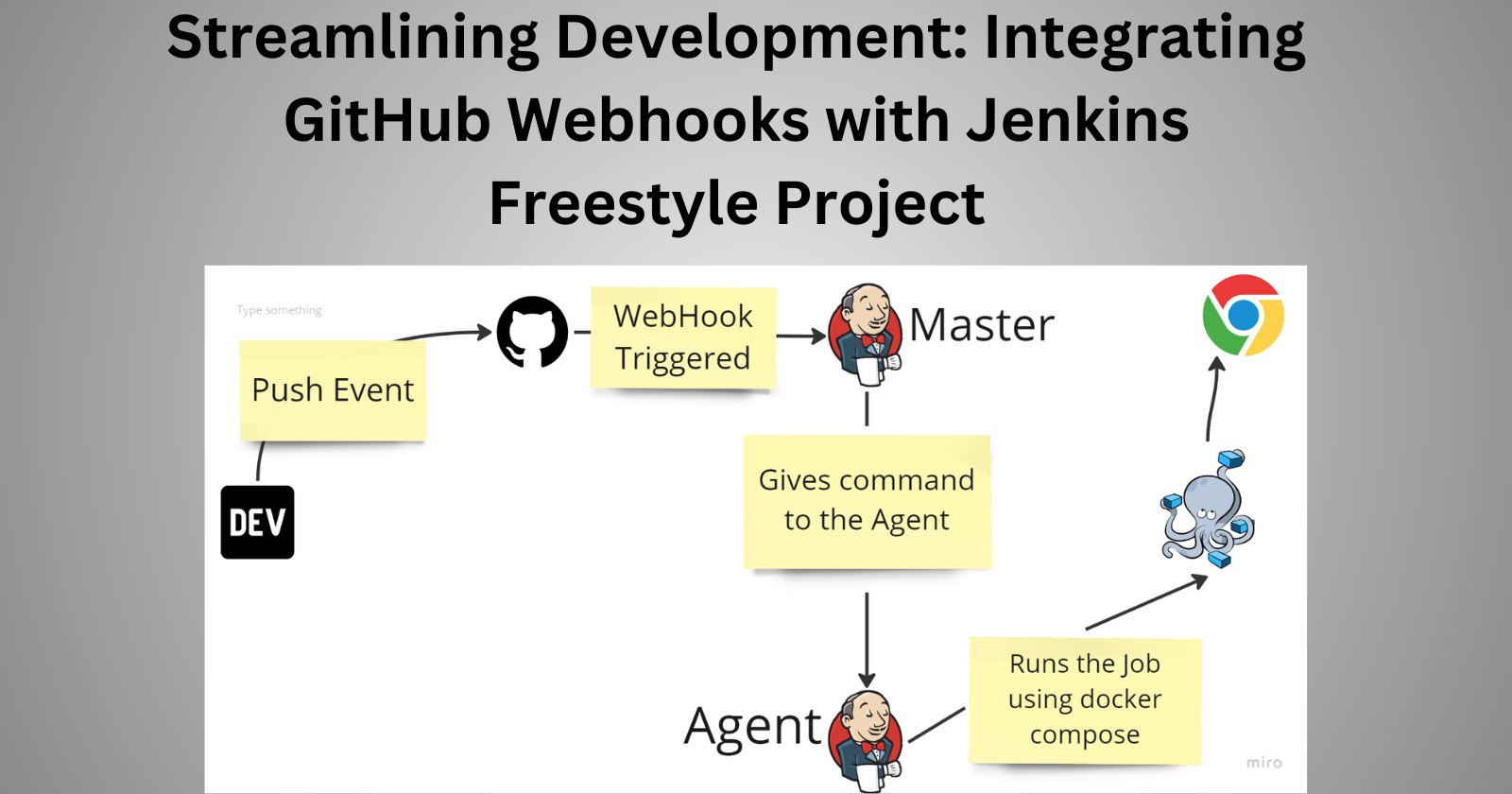
In this blog, we'll guide you through the process of creating a powerful CI/CD Project using the freestyle build for your Node.js application. If you've already completed Day 23, which focused on Jenkins CI/CD, you're well on your way. Now, let's take it a step further by diving into an exciting project that you can proudly add to your resume!
Task-1
Step1:
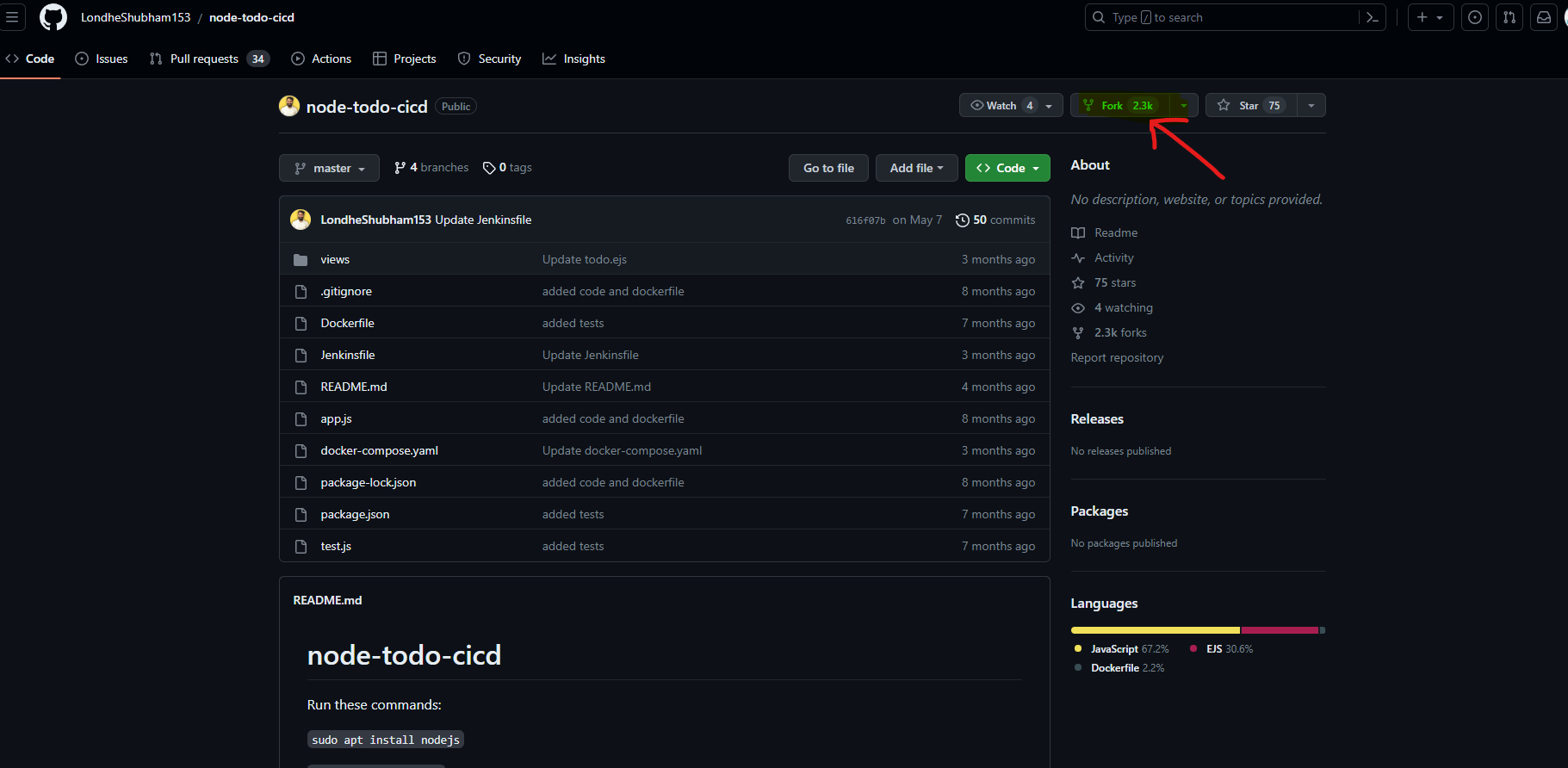
The first step is to fork this GitHub Repository. Open the repository and click on fork on top right as shown in the Image below, It will automatically make a copy of it in your GitHub Profile.
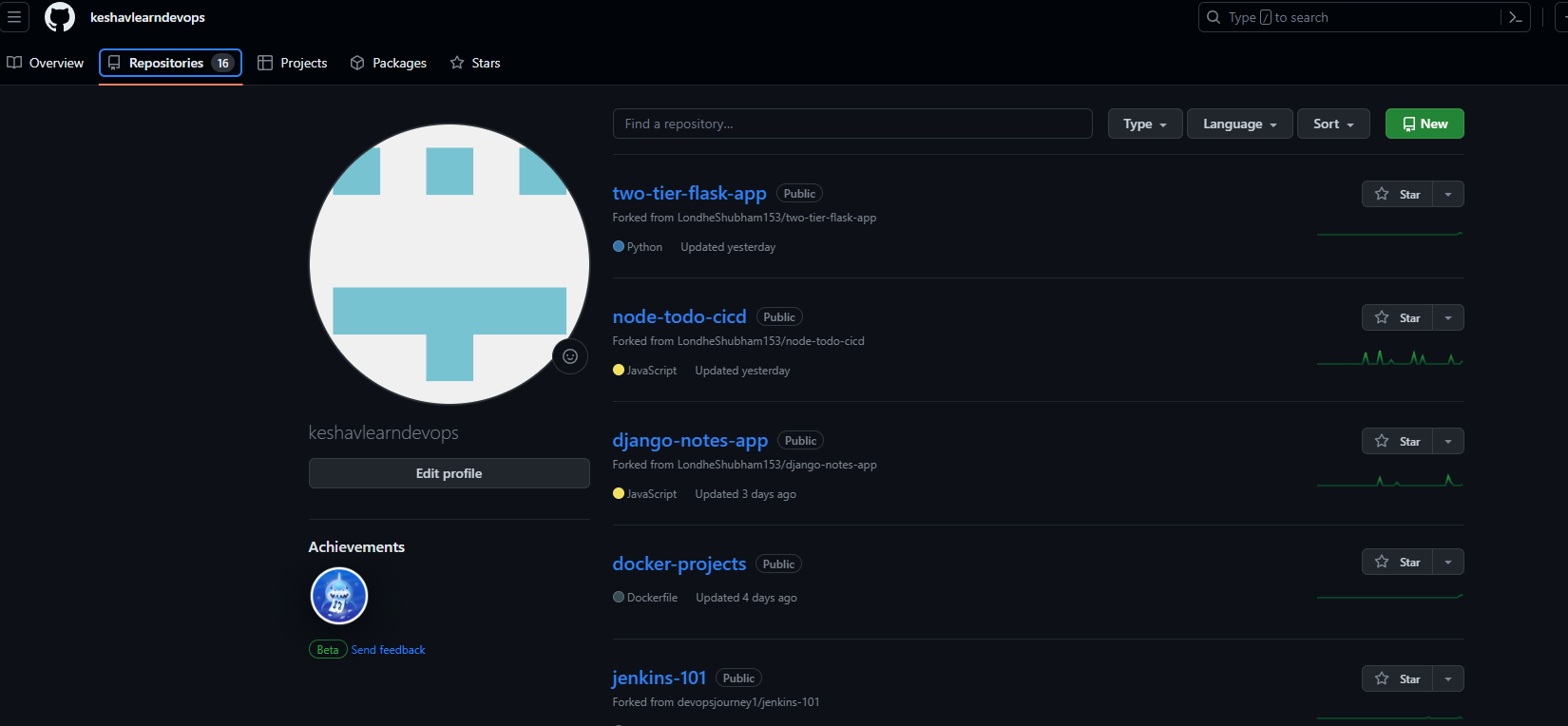
Go to your profile and click on Repositories you will see the forked repo in it.
Step2:
Let's first start our both Jenkins Master and Jenkins Agent. Log in to the Jenkins UI and as we have stopped our Agent Its Public IP got changed, so we have to update the changed IP in the Agent configuration on the Jenkins Console.
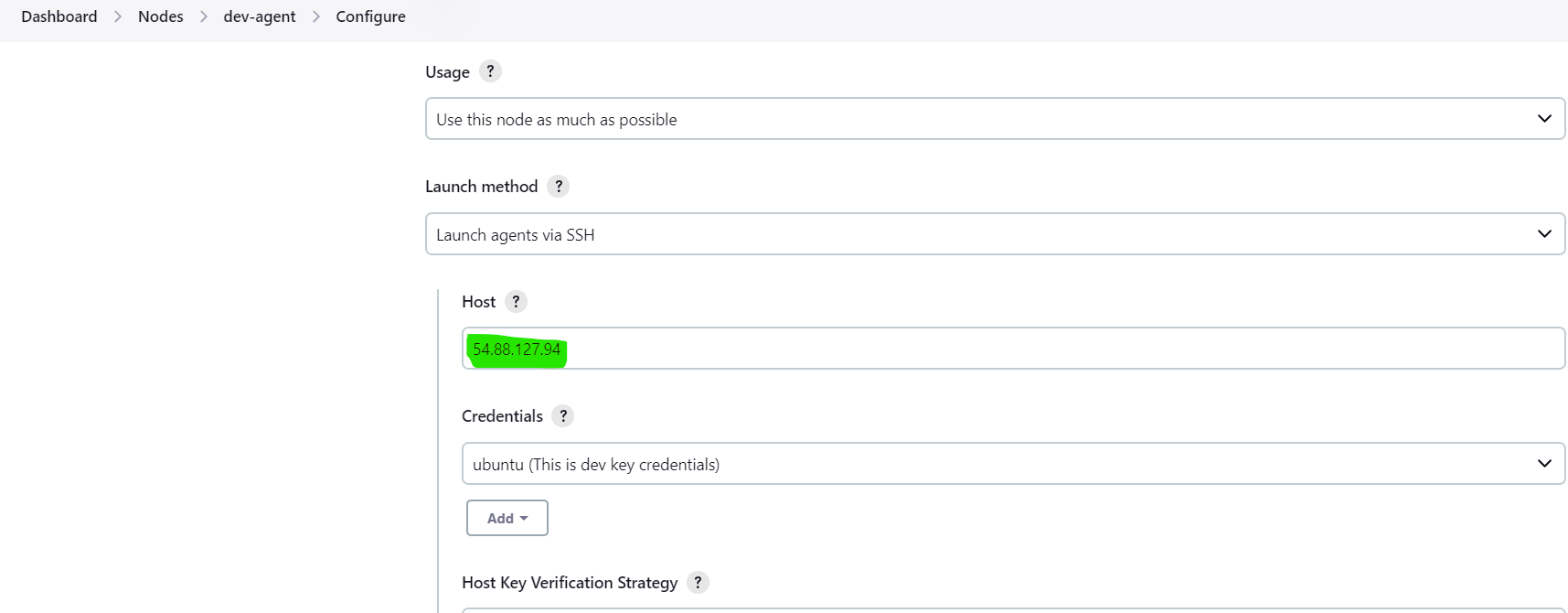
Step3:
Create a Freestyle Project, I named it my-node-freestyle
Select the GitHub Project and paste the code URL, I want it to run on my agent only so click on "Restrict where this project can be run" and type your agent name.
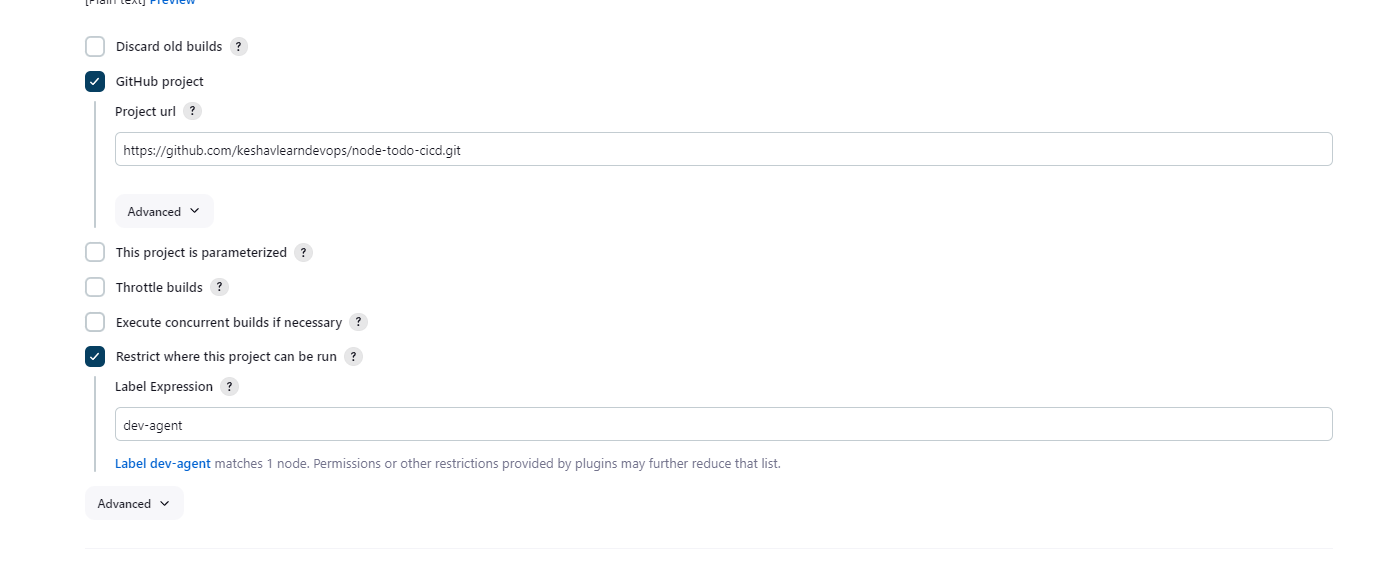
Integrating GitHub Webhook:
They trigger Jenkins to build, test, and deploy code when GitHub events like pushes and pull requests occur, enabling real-time feedback, automated testing, and efficient development and deployment processes.
Go to the GitHub Repository on top of it you will see settings, click on it and you will see webhook in the list click on it and hit Add Webhook, put the payload URL asJenkins-ip/github-webhook/as shown in the image below, reload the page and it will show a green tick.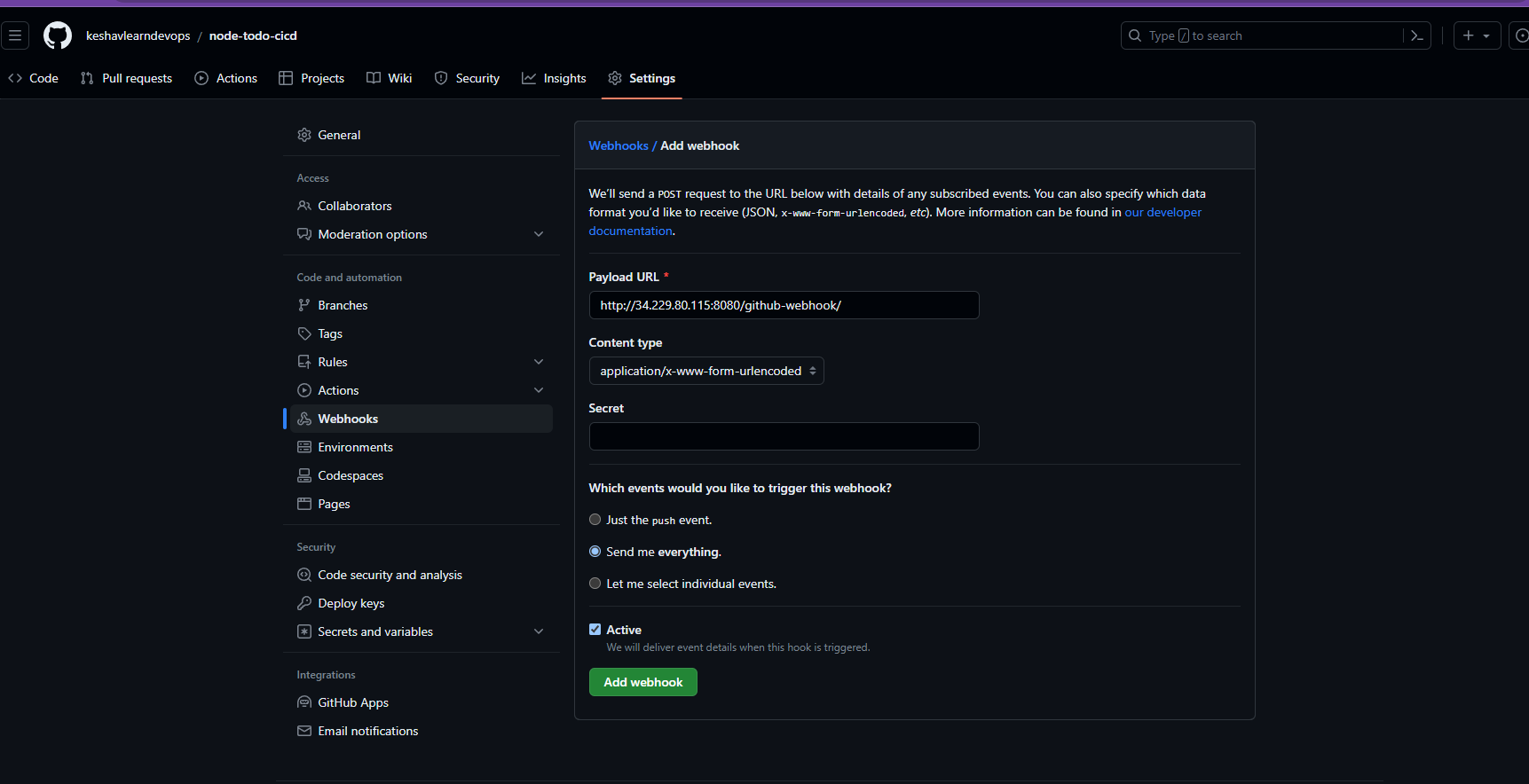
Reload the page of github, the webhook will be active as shown by the green tick
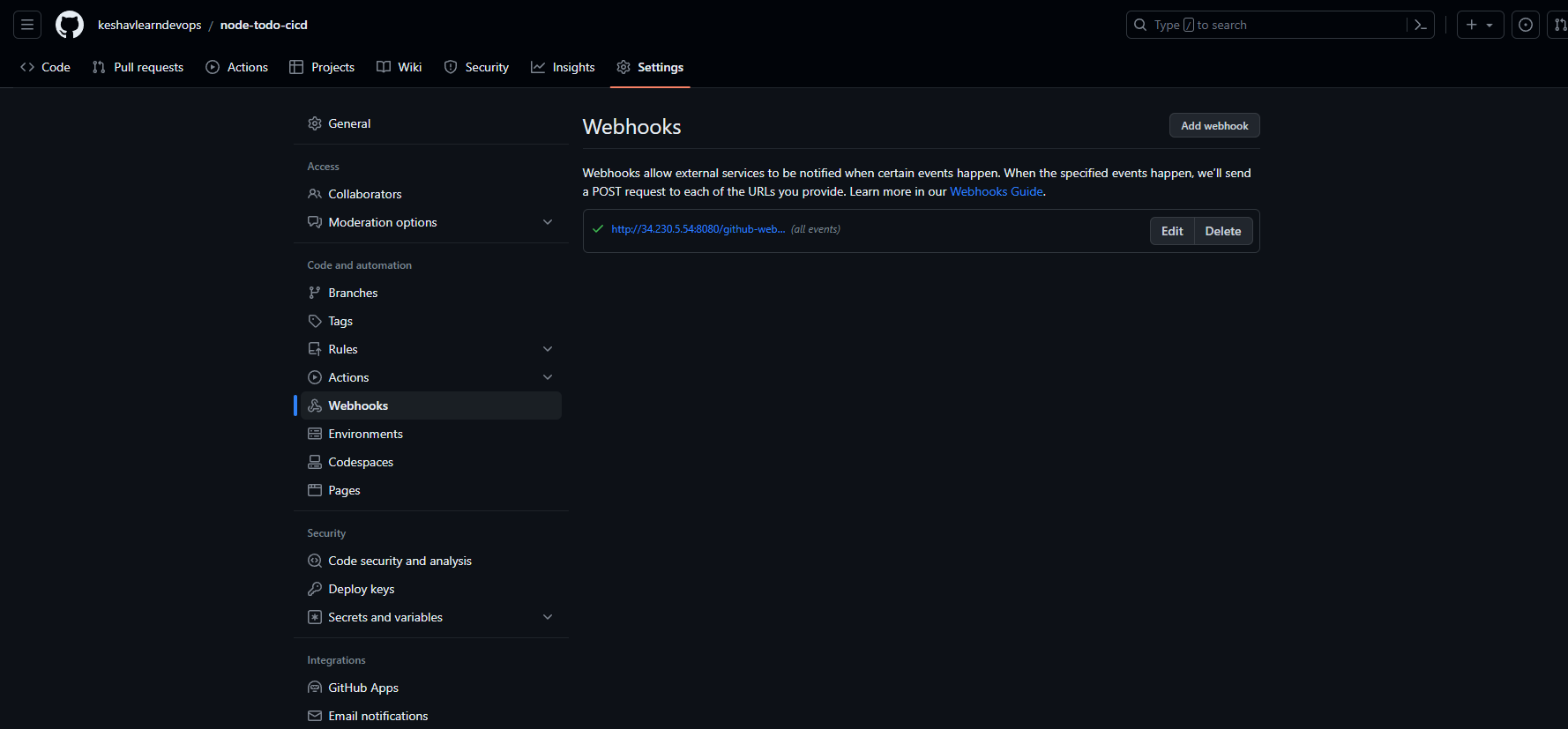
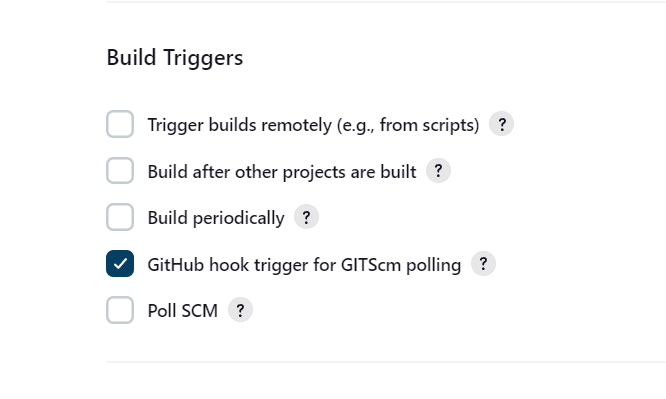
Select the GitHub hook trigger for GITScm polling so that our Jenkins must know about the webhook
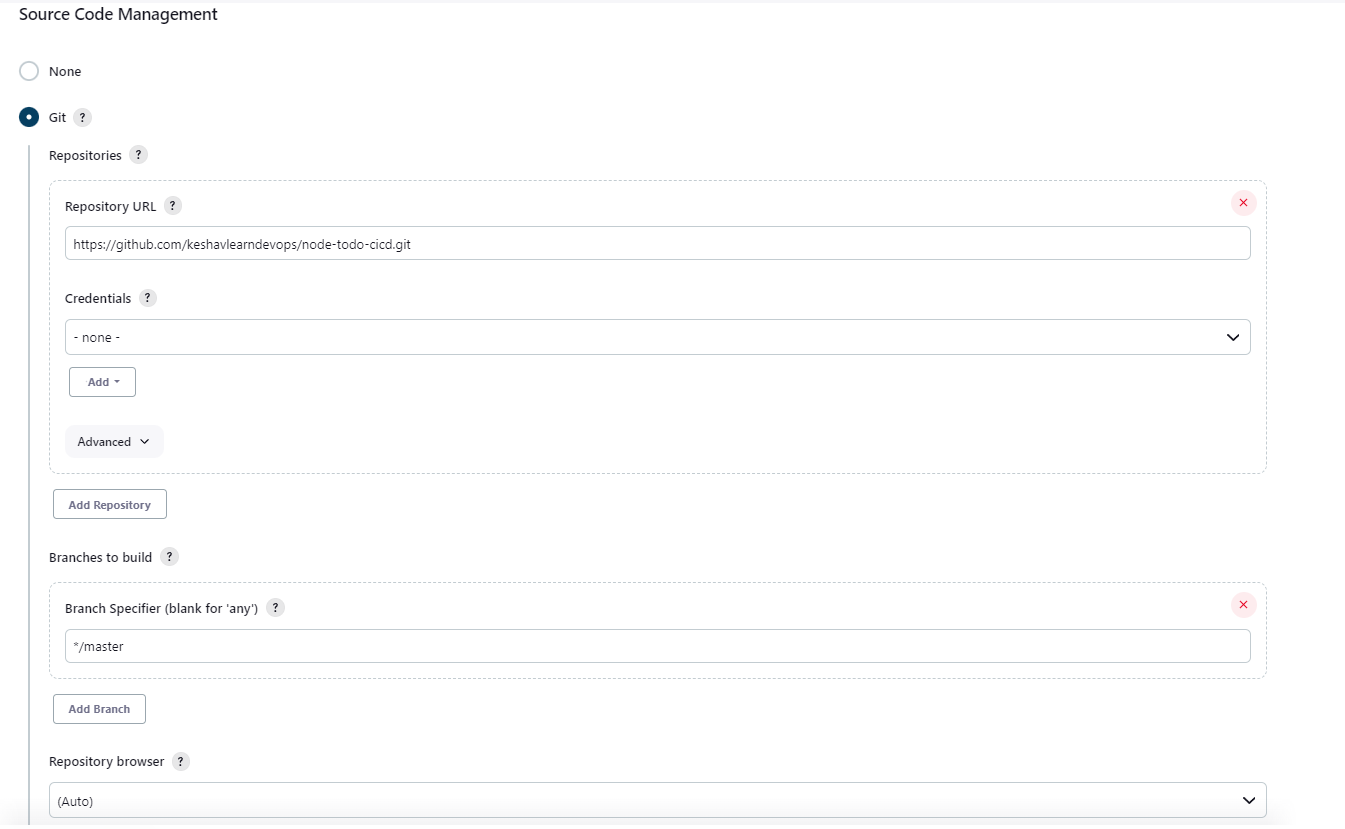
In the Source Code Management do the below changes
Task-2
Step1:
Creating a Dockerfile for the node project
FROM node:12.2.0-alpine
WORKDIR app
COPY . .
RUN npm install
RUN npm run test
EXPOSE 8000
CMD ["node","app.js"]
Step2:
Creating a docker-compse.yml file
version: '3.9'

services:
  web:
    build: .
    ports:
      - "8000:8000"
Step3:
In the Build Steps on the Jenkins console, select execute shell and type in the below commands
docker-compose down
docker-compose up -d --no-deps --build web
Step4:
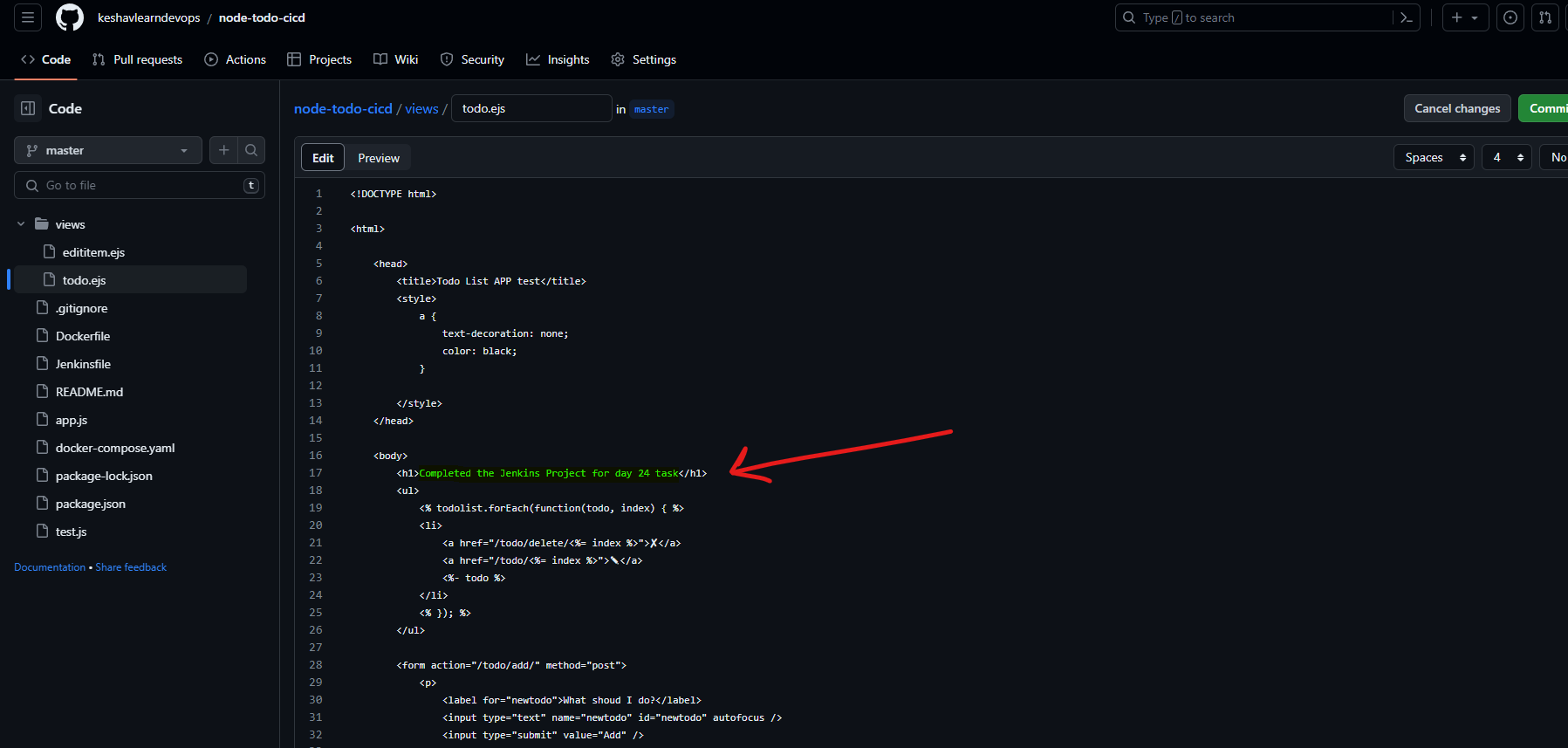
Now just do any modification in the code on the GitHub Repository and commit it. I did the following change in views>todo.ejs file as shown below
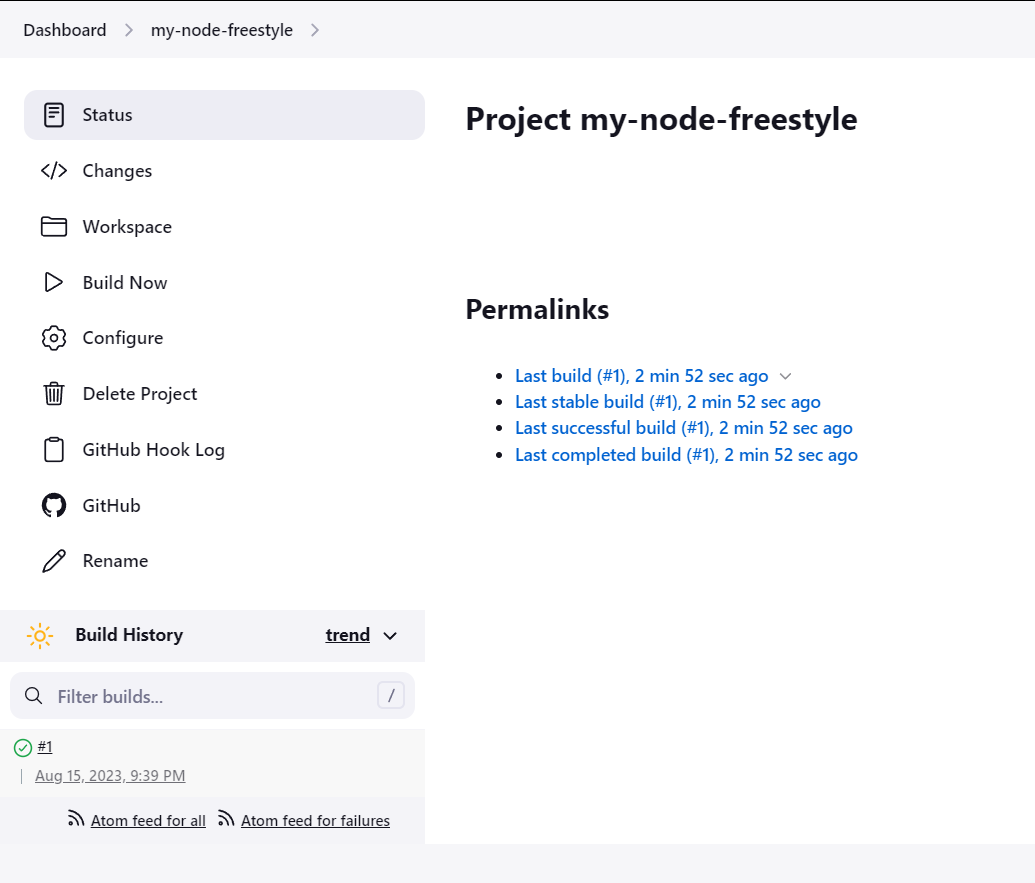
This is the screen of Jenkins before you do a commit on the GitHub Repository, there is just 1 build which got created when I changed the docker-compose file on the GitHub
Step5:
Now let's do a commit on the repository and see the Jenkins Magic. As soon as you hit commit you will see a new build is triggered as shown below
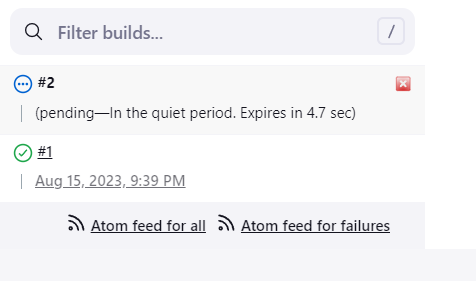
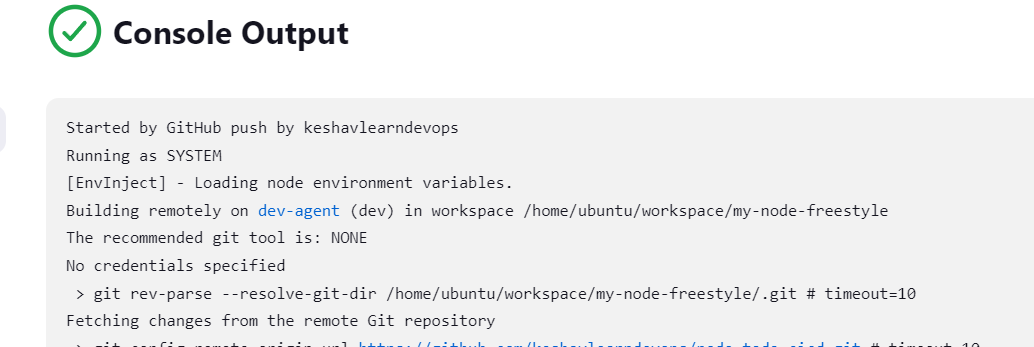
And when you see the Console Output of Build Number 2, it will show that it got triggered by GitHub push event and it is running on my dev agent as shown below
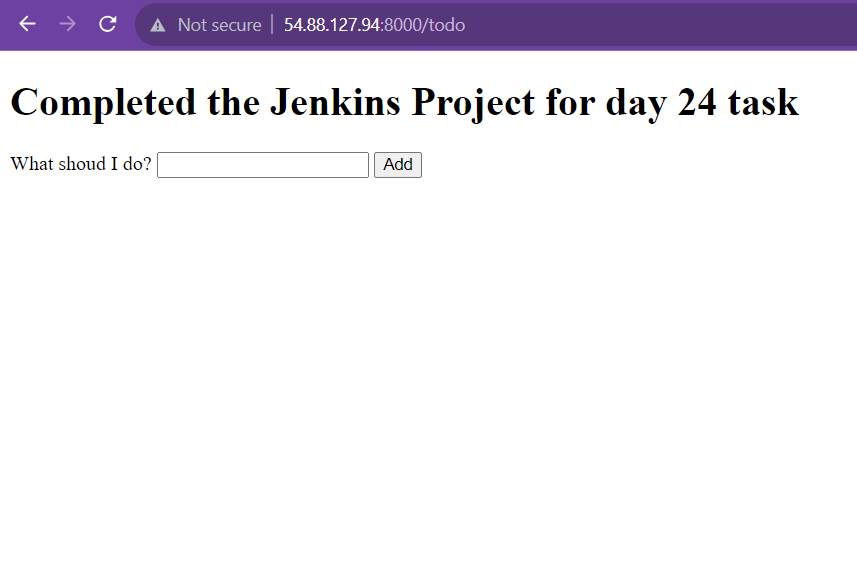
Okay now let's check if it is working and reflecting our modified changes. But first, make sure to add an inbound rule of port 8000 on the agent instance as we are exposing it from Dockerfile and docker-compose file. I have already added it, lets copy the public IP of the Agent Instance and append it with the port 8000 like 54.88.127.94:8000 and hit enter in a new tab. If you got the below output then my friend you have completed the Project. Happy Learning!