Docker for DevOps Engineers

What is Docker?
Sure! Let's make it more engaging by using stars and emojis! 🌟🎉
🍱 Docker: The Magical Lunchbox for Your Applications! 🍱
🌟 Imagine Docker as a magical container for your applications. 🎩✨
🌟 Just like you pack your lunch in a lunchbox, Docker lets you pack your applications along with everything they need to run, into a neat little container. 🍔🥪🍕🍪🎒
🌟 An "application" could be anything you use on your computer, like a website, a game, or even a database. 🕸️🎮💽
🌟 And when we say "things they need to run," we mean everything required to make the application work correctly, like libraries, settings, and other necessary stuff. 📚⚙️🧩
Real-Life Examples:
⭐ Moving to a New Computer:
Suppose you have a cool game on your computer, and you want to play it on your friend's computer. Instead of installing the game and all its settings from scratch on your friend's computer, you can just pack the game and everything it needs into a Docker container. 🎮📦
You carry that container on a USB drive or upload it to the cloud.
When you reach your friend's computer, you just open the container, and voilà, the game runs there without any hassle. It's like having a magical portable game box! 🪄💻🎁
⭐ Simplifying App Development:
Imagine you're a chef who likes to cook delicious recipes. Each recipe has specific ingredients and steps to follow. 🧁🍝🍰
Instead of setting up a whole kitchen every time you want to cook a different recipe, you can have a "recipe container" for each dish. Each container contains all the ingredients and instructions needed for that specific recipe. 📝📦
So, when you want to cook a specific dish, you just open its container, and you have everything ready for you. No more worrying about the mess or mixing up ingredients. It's like having your own cooking assistant that sets up everything for you. 🍳🤖🧁
Docker makes things super easy for developers and IT folks too. It helps them package their applications and all the necessary stuff into these magical containers. They can share these containers with others, run them on different computers, or even in the cloud, and it all works the same, like magic! 🎩🌟🍱
In a nutshell, Docker is like a handy lunchbox for your applications, making them easy to carry, share, and run anywhere you want, just like magic! 🍱🎩🐳✨🚀
Virtualization vs Containerization
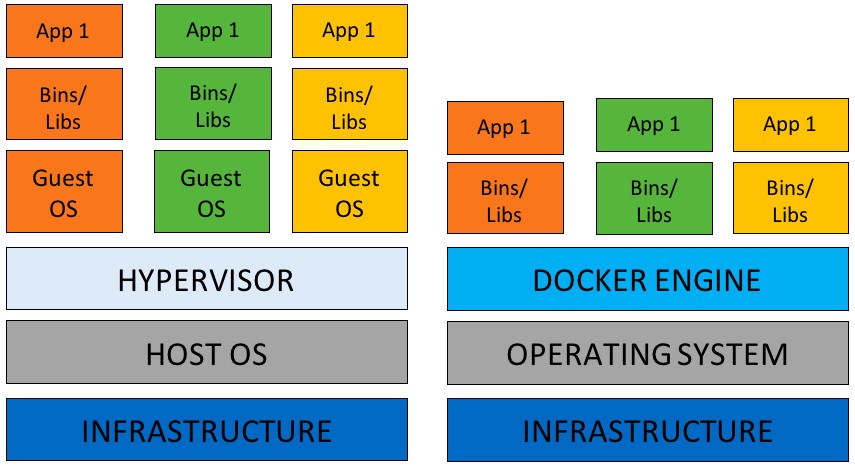
Containerization vs. Virtualization:
Virtualization: Virtualization allows running multiple virtual machines (VMs) on a single physical machine (the host). Each VM operates as an independent and complete operating system with its own kernel, hardware, and applications. The hypervisor manages the VMs and creates the virtualized environment.
🔹 Advantages of Virtualization:
Complete Isolation: Each VM is isolated from other VMs and the host, providing strong security boundaries.
Compatibility: Different operating systems can be run on the same host simultaneously.
Resource Management: VMs can be allocated specific amounts of CPU, memory, and disk space, ensuring resource allocation and control.
Containerization: Containerization is a lightweight form of virtualization that allows applications to run in isolated environments called containers. Containers share the host OS kernel, which makes them more lightweight and efficient compared to traditional VMs. Docker is a popular containerization platform that simplifies the creation and management of containers.
🔹 Advantages of Containerization:
Lightweight: Containers share the host OS kernel, resulting in faster startup times and minimal resource overhead.
Portability: Containers are portable across different environments, ensuring consistent behavior from development to production.
Scalability: Containers can be easily scaled up or down, making them suitable for dynamic workloads and microservices architectures.
Comparison:
Resource Overhead: Virtual machines are heavier due to the need to run multiple guest operating systems, while containers have lower resource overhead as they share the host OS kernel.
Isolation: Virtual machines provide stronger isolation because they have their own separate kernel, whereas containers share the host kernel but still offer sufficient isolation for most applications.
Performance: Containers generally offer better performance and faster startup times than virtual machines due to their lightweight nature.
Use Cases: Virtualization is well-suited for running different operating systems, legacy applications, or when strong isolation is required. Containerization is ideal for fast, lightweight, and portable application deployment, especially in microservices-oriented environments and cloud-native applications.
When to Use Each:
Use Virtualization when you need to run multiple different operating systems, run legacy applications, or require stronger isolation between applications.
Use Containerization when you need fast, lightweight, and portable application deployment, especially in microservices-oriented environments and cloud-native applications.
In summary, virtualization and containerization are both valuable technologies, each serving specific use cases. The choice between them depends on the specific requirements of the applications and infrastructure being used. 🚀🐳
It Works in My Machine and Docker 🐳
"It works in my machine" is a common frustration among developers when their software behaves differently in different environments. This happens because of variations in system configurations and dependencies between development and production environments.
Docker comes to the rescue! 🎉 With Docker, developers can package their application along with all its dependencies, libraries, and settings into a portable container. This container encapsulates everything needed to run the application consistently.
So, whether the application is developed on a laptop, shared with team members, or deployed on a server, Docker ensures that it behaves the same way everywhere. No more "It works in my machine" issues! 🚀
In a nutshell, Docker provides a reliable and consistent environment for the application, making development and deployment smoother and hassle-free. 🌟🐳
Docker Architecture

🏠 Docker Host: The Docker Host is the physical or virtual machine on which the Docker engine is installed and runs. It is the home where Docker containers reside. 🏠🐳
🐳 Docker Engine:
📦 Docker Daemon:
The Docker Daemon is the core manager of Docker. It is a background service that runs on the host system.
Responsibilities: The daemon handles the key aspects of Docker, such as managing containers, images, networks, and volumes.
Interaction: Clients interact with the Docker Daemon through the Docker CLI or Docker API.
💻 Docker CLI:
The Docker CLI (Command-Line Interface) is a command-line tool that allows users to interact with the Docker Daemon and manage Docker resources.
Usage: Developers and administrators use the Docker CLI to perform tasks like building images, creating containers, managing networks, and more.
Commands: It provides a set of commands for various Docker operations, making it easy to work with Docker.
📋 Docker Image:
🏞️ Lightweight, portable, and self-sufficient template:
A Docker image is a lightweight and efficient package that contains everything needed to run an application.
Components: It includes the application code, runtime environment, system libraries, and other dependencies.
Immutable: Docker images are read-only, making them immutable and ensuring consistency across different environments.
📋 Contains app code, runtime, libraries, and dependencies:
The Docker image acts as a snapshot of an application and its required components.
Self-contained: It includes all the dependencies and configurations necessary to run the application without relying on the host system.
🏗️ Built from instructions in a Dockerfile:
A Docker image is built using a text file called a Dockerfile.
Dockerfile: The Dockerfile contains a series of instructions that specify how to assemble the image layer by layer.
Reproducible: The Dockerfile ensures that the image creation process is reproducible and consistent across different systems.
🗄️ Stored in a Docker registry (public or private):
Docker images are stored in repositories, which are part of Docker registries.
Public Registries: Docker Hub is the default public registry where developers can find and share their images.
Private Registries: Organizations can set up private registries to store their custom images securely within their network.
🚀 Docker Container:
🚀 Runnable instance of a Docker image:
A Docker container is a lightweight and isolated runtime environment created from a Docker image.
Isolation: Containers run on top of the host operating system, but they are isolated from other containers using kernel namespaces and control groups (cgroups).
Fast Startup: Containers start quickly due to their lightweight nature, making them ideal for rapid deployment.
🔒 Isolated and self-contained environment:
Containers provide an isolated and independent runtime environment for the application and its dependencies.
Encapsulation: Each container encapsulates its own filesystem, libraries, and runtime, ensuring that the application runs consistently regardless of the host system.
🏠 Runs on host OS but isolated from other containers using kernel features:
Containers share the host OS kernel, which allows them to be more efficient in terms of resource usage.
Isolation: Kernel namespaces and cgroups ensure that containers do not interfere with each other, enhancing security and stability.
🕊️ Lightweight and fast to deploy:
Containers are lightweight because they share the host OS kernel and do not require a full OS installation.
Rapid Deployment: The lightweight nature of containers enables fast startup times and easy scaling.
🏢 Docker Registry:
🏢 Repository for storing and distributing Docker images:
A Docker registry is a centralized place for storing and sharing Docker images.
Image Sharing: Developers and teams can push their custom images to the registry and pull images from it when needed.
🌐 Public (e.g., Docker Hub) or private (self-hosted) registries:
Public Registries: Docker Hub is the default public registry provided by Docker. It hosts a vast collection of pre-built Docker images that are publicly accessible.
Private Registries: Organizations can set up their private registries to store sensitive or proprietary images securely within their network.
⬇️ Images can be pulled from registries to create containers:
When you want to run a container, you pull the required Docker image from a registry to your local system.
Reusability: Pulling images from a registry allows you to reuse the same image across different hosts, ensuring consistency in the deployment process.
🎼 Docker Compose:
🎼 Tool for defining and managing multi-container Docker applications:
Docker Compose is a tool that simplifies the management of multi-container Docker applications.
Definition: It allows you to define the services, networks, and volumes required for your application in a single
docker-compose.ymlfile.
📄 Uses a simple YAML file (
docker-compose.yml) to specify services, networks, and volumes:The
docker-compose.ymlfile contains the configuration details for all the services needed to run the application.Service Definition: Each service entry specifies a Docker image, the exposed ports, and any additional configurations.
💼 Manages multiple services with a single command:
With a single
docker-composecommand, you can create, start, and stop all the services defined in thedocker-compose.ymlfile.Easy Coordination: Docker Compose simplifies the coordination between multiple services, making it more convenient to run complex applications.
🐝 Docker Swarm:
🐝 Docker's native clustering and orchestration solution:
Docker Swarm is a built-in clustering and orchestration solution provided by Docker.
Scalability: It allows you to create a swarm of Docker nodes (hosts) and distribute containers across the cluster to scale your applications.
🤝 Manages a cluster of Docker nodes (hosts):
- Docker Swarm forms a cluster of Docker
Tasks
Docker Installation and Setup:
Install Docker: To install Docker, use the following command. This will install the Docker engine on your system.
$ sudo apt install docker.ioCheck Running Containers: To see the list of running containers, use the
docker pscommand. This will display the active containers along with their details.$ docker psAdd User to Docker Group: By default, Docker requires root privileges to run commands. To allow your user to run Docker without using
sudo, add your user to the Docker group using the following command. Make sure to replace$USERwith your actual username.$ sudo usermod -aG docker $USERRestart Docker Service: After adding your user to the Docker group, restart the Docker service to apply the changes.
$ sudo systemctl restart dockerReboot Your System (Optional): Rebooting your system is optional, but it ensures that the changes take effect immediately.
$ sudo reboot
🐳 Docker Commands:
1. docker run:
The
docker runcommand starts a new container from a specified image and allows you to interact with it through the command line.Example:
docker run hello-world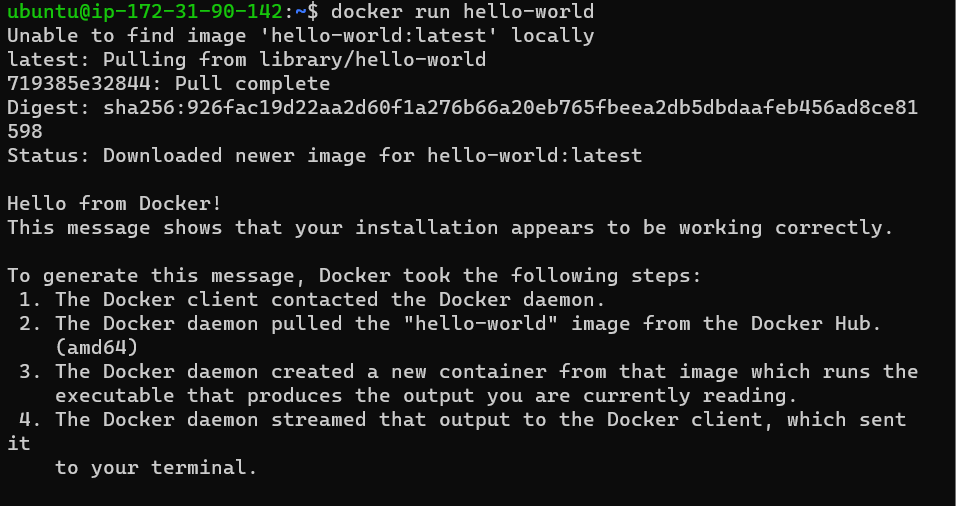
2. docker inspect:
The
docker inspectcommand provides detailed information about a container or image in JSON format.Example:
docker inspect my_container
3. docker port:
The
docker portcommand lists the port mappings for a running container, showing public port bindings and corresponding private container ports.Example:
docker port my_container
4. docker stats:
The
docker statscommand displays real-time resource usage statistics for one or more running containers, such as CPU usage, memory, and network I/O.Example:
docker stats my_container
5. docker top:
The
docker topcommand shows the processes running inside a container, including process IDs (PIDs) and resource usage.Example:
docker top my_container
6. docker save:
The
docker savecommand saves a Docker image to a tar archive file, which is useful for sharing or moving images.Example:
docker save -o my_image.tar my_image
7. docker load:
The
docker loadcommand imports a Docker image from a tar archive file into your local Docker environment.Example:
docker load -i my_image.tar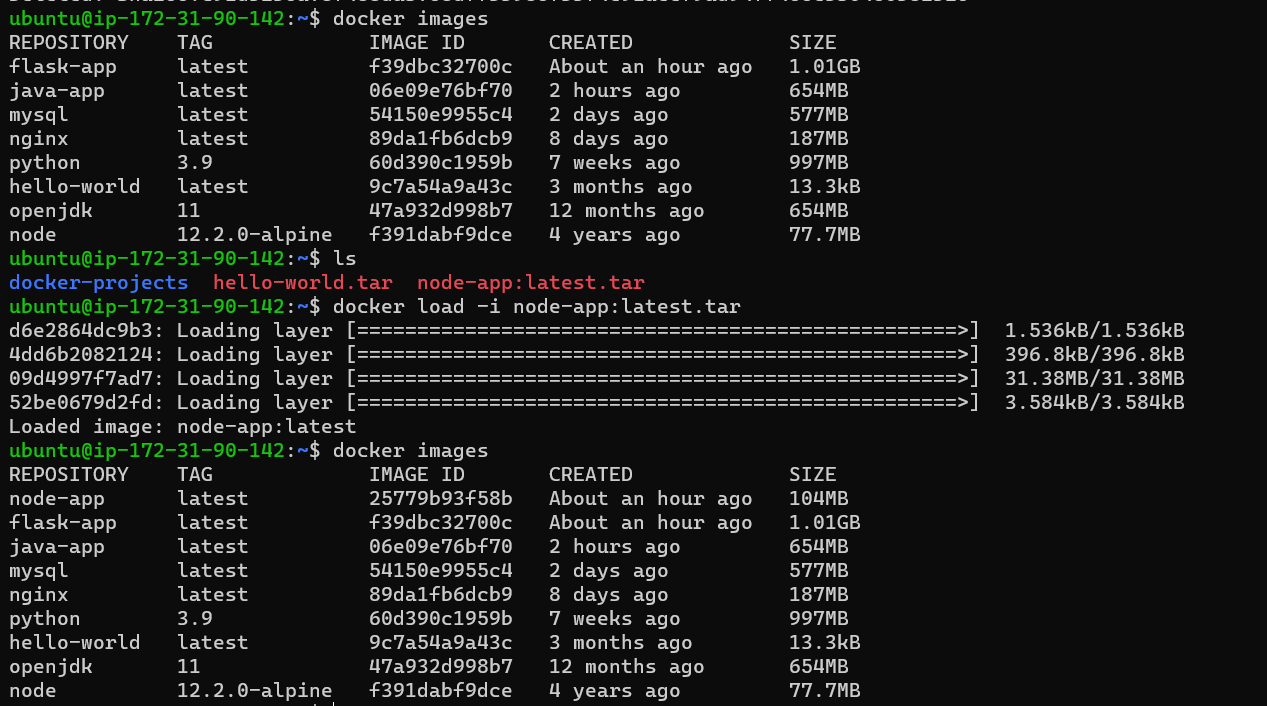
These Docker commands are powerful tools for managing containers and images efficiently.🚀🐳


